What does the demo mean?
Combining yazi with vim for easier bulk renaming.
Why should you try yazi?
When I first started using Linux, I was drawn to using tiling window managers like i3, Sway then Hyprland. I knew they require a very terminal-centric workflow, but it was quite daunting to get into the terminal.
It also doesn’t help that my previous experience with the terminal was negative: I only needed to deal with it when I had to SSH into the server for work: I had to constantly ls and cd over and over again. After ls and realized what I was looking for is a hidden file, I needed to run ls -a instead:
I thought no one would get used to this inefficient and clunky workflow, but after using a terminal file manager like ranger and subsequently yazi, it completely changed my view. The following is the same operation using yazi:
When I launched yazi, I’m presented with its TUI. The Vim-like control feels right at home: going up and down with j and k, changing directories with h and l. This means that I don’t need to ls and cd all the time.
Here’s a side-by-side comparison for the same outcome:
Getting Started
To try out my exact yazi setup:
git clone https://github.com/kohane27/dotfiles-yazi.git
cd dotfiles-yazi
# copy the dir to your home-manager config, e.g.:
cp -r ./yazi- ~/.dotfiles/modules/home-manager/cli
Powerful Duck
1. Going to frequent directories with two keystrokes
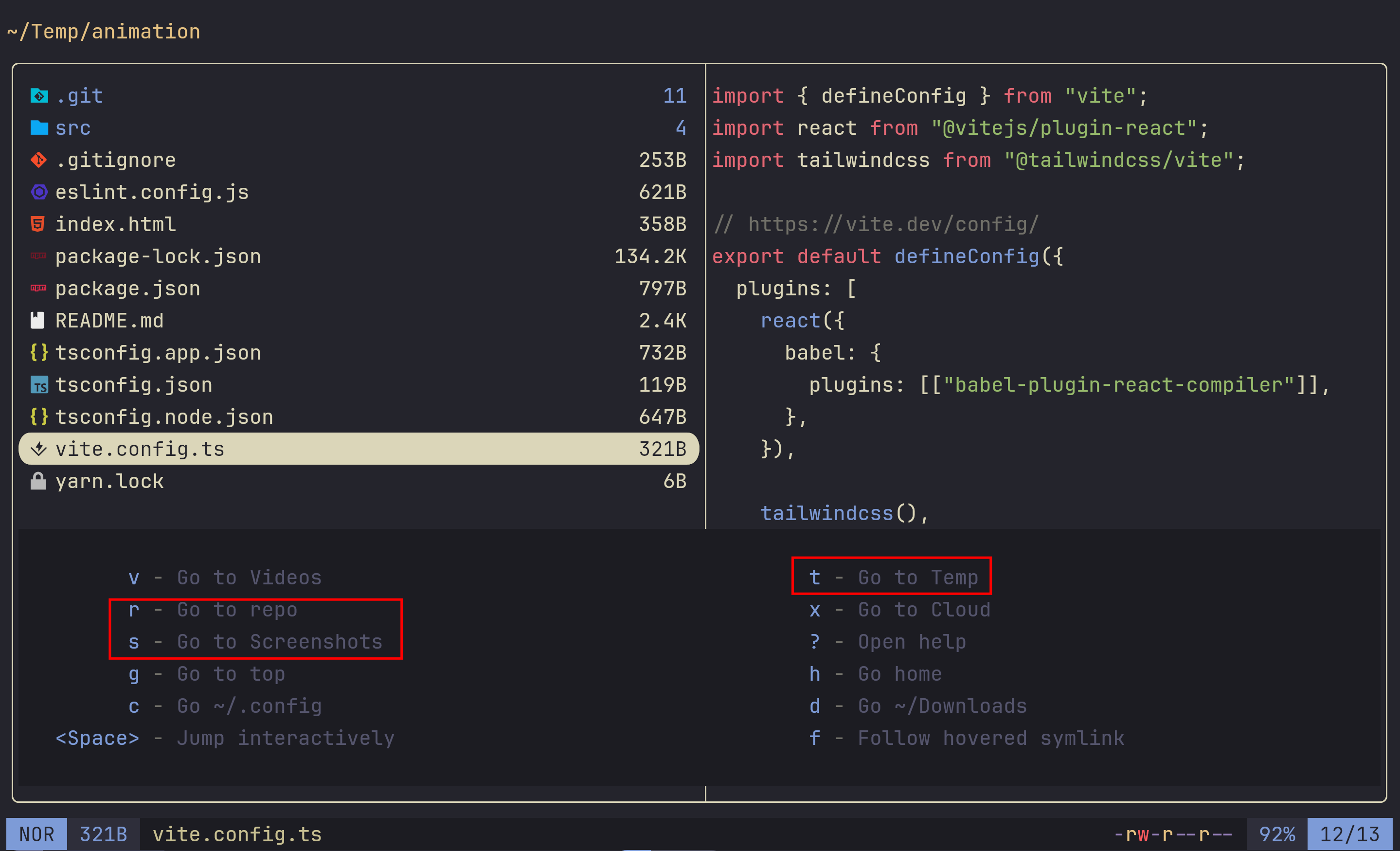
I have set up different keybindings for going to some usual directories like home, Downloads, screenshots, repo and so on. The keybinding G is for “go to”: gr to go to ~/repo, gt for ~/Temp, gs for ~/screenshots and so on:
2. Common file operations become a breeze
To move the latest png from screenshots to Downloads:
gsto go to myscreenshotsdirectoryddon the target image to cut itgdto go to theDownloadsdirectoryppto paste it
3. Vim keybindings feature parity
The keybinding C-o, like Vim, takes you back to the previous location. For example:
ddon the target png to cut itgtto go to~/Tempppto paste itCtrl-oto go back to the previous directory (i.e., theDownloadsdirectory)
4. Simple renaming
Press r will pop up the rename UI. Pressing R will drop the cursor to the end of the input (after the file extension) so I can change it directly:
The equivalence is simply mv README.md apple.md, but that’s another story with bulk rename operation:
5. Bulk renaming
With yazi, I can first visually select the target files, then press r to trigger the bulk renaming. It then opened up a real vim buffer. All the vim magic (block-wise visual mode) is at my disposal. When I exit the buffer, the files are renamed:
I know we can use find with mv for bulk rename, but it requires handling the regex and flags carefully. I’m always terrified of messing up the result, so I always need to use --dry-run for confirmation before running the actual command. Comparing it with the yazi workflow I much prefer yazi’s way.
6. Searching files
Let’s say I know there is a README.md in the lazygit repo. In yazi, I can just press / to find it without my eyes searching for it as long as I know it exists in the repo:
That’s not the same with a GUI file manager: your eyes need to visually scan through the entries in the UI. I know all GUI file managers let you search for files, but sometimes the interface requires clicking around that it’s just faster to visually look for it. Besides, once you start looking for the target, you tend to continue and you feel “close” to the target. Switching strategy by going with the search route feels like giving up on the progress you have made, similar to The Bus Stop Syndrome.
Here’s a side-by-side comparison:
It’s not about the milliseconds saved, but rather, it’s about “making it do what I want” (intent) in cognitively less demanding ways.
7. Sorting directories
~/Temp/0-repo is the directory for project playground. Let’s say I’ve just cloned the repo parakeet-tdt-0.6b-v3-fastapi-openai and I want to go back to it. But the list is long and the default order is sorted alphabetically, so one way is to spam Ctrl-d and kkk after overshooting:
Of course I can search for the repo name with /, but sometimes I don’t even remember the name. With yazi, there’s a more intentional way: I can press ,M to reverse sort the directories by modified time. The first one will always be the one I’ve just cloned:
yazi has dfferent built-in sorting mechanisms to match my intention:
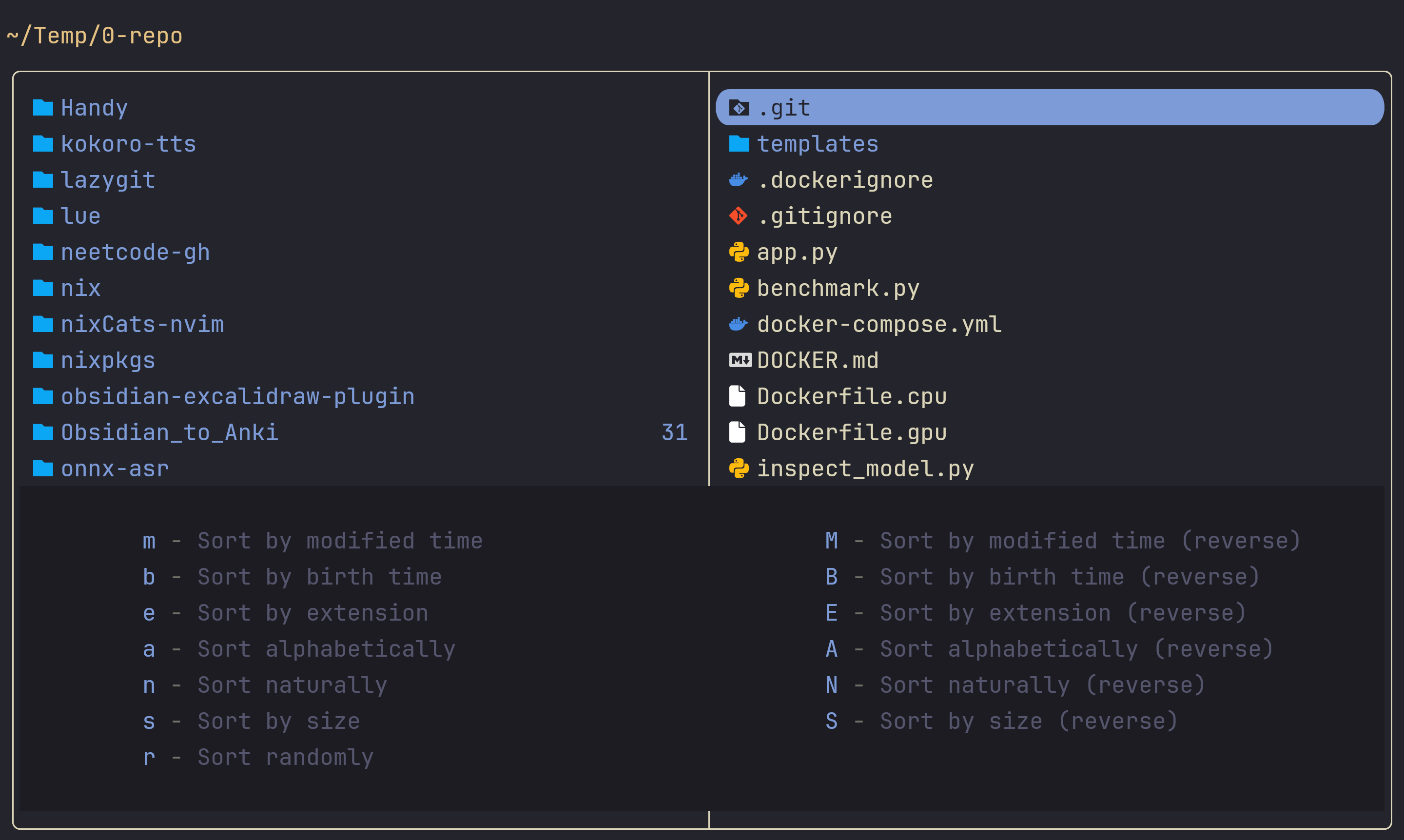
Searching by modified time matches my intention of finding the latest repo.
8. toggle-pane.yazi
When I want to preview the images better, I can press <Space>m to quickly maximize the preview pane. If I need to edit it, I can press <Space>p to open it in pinta:
9. lazygit integration
When I’m in a git-managed directory, I can press C-q to launch lazygit. I have a unified keybinding between zsh, yazi and neovim such that pressing C-q will always trigger lazygit:
10. ouch integration
I use ouch. I could never remember the flags for compressing or decompressing a zip or tarball, so I have the keybinding <Space>od for “ouch decompress” and <Space>oc for “ouch compress”.
11. zoxide integration
In the CLI, I can trigger zoxide with Ctrl-g, and I’m presented with the zoxide list. After filtering with para, when I press enter, it spawned yazi immediately, and I can do whatever I need to do next without having to type yazi and press Enter:
The following custom widget does the above and if you want to add it to your zshrc.
# ctrl-g
zle -N zoxide-to-yazi
bindkey '^G' zoxide-to-yazi
#!/bin/zsh

zoxide_to_cd () {
    zle kill-whole-line

    local zout
    zout=$(zoxide query --interactive)
    [[ -z $zout ]] && { zle reset-prompt; return }
    cd "$zout" || exit

    tmux send-keys "r" Enter
}
Why tmux send-keys "r" Enter? I have remapped r to be the shell wrapper that changes the current working directory when exiting yazi:
r () {
  local tmp="$(mktemp -t "yazi-cwd.XXXXXX")"
  yazi "$@" --cwd-file="$tmp"
  if cwd="$(cat -- "$tmp")" && [ -n "$cwd" ] && [ "$cwd" != "$PWD" ]; then
      builtin cd -- "$cwd"
  fi
  rm -f -- "$tmp"
}
# binding ctrl-f to run "r" and a new-line character to act as Enter
bindkey -s "^F" "r\n"
Why I like yazi
I think a TUI is the perfect middle ground between a pure CLI-centric workflow and a GUI file manager like macOS Finder or Thunar. With a TUI, there are more visual cues as to what’s happening, the abstraction enables Vim-like keybindings, and the integration and customization between tools are endless.
The above examples are so common in my day-to-day workflow that I need to do them all the time, and every time I do it with yazi, it gives me a little joy in the process itself.
I have removed all these little frictions in my workflow. It’s not really about the milliseconds saved. For me, it’s about enjoying the tools I use. Being more efficient is not only about being a bit faster. I just want to achieve my intention (i.e., make it do what I want) with a smaller cognitive load, and I believe TUI is a much nicer way to do it.
Conclusion
ranger and then yazi was the gateway drug I needed to get into using the terminal. It opened up my eyes to how powerful and personalized the terminal could be. If you’re new to the terminal, I recommend giving yazi a try and I think you’ll like it! If you want to take it to the next level, check out search.yazi!